
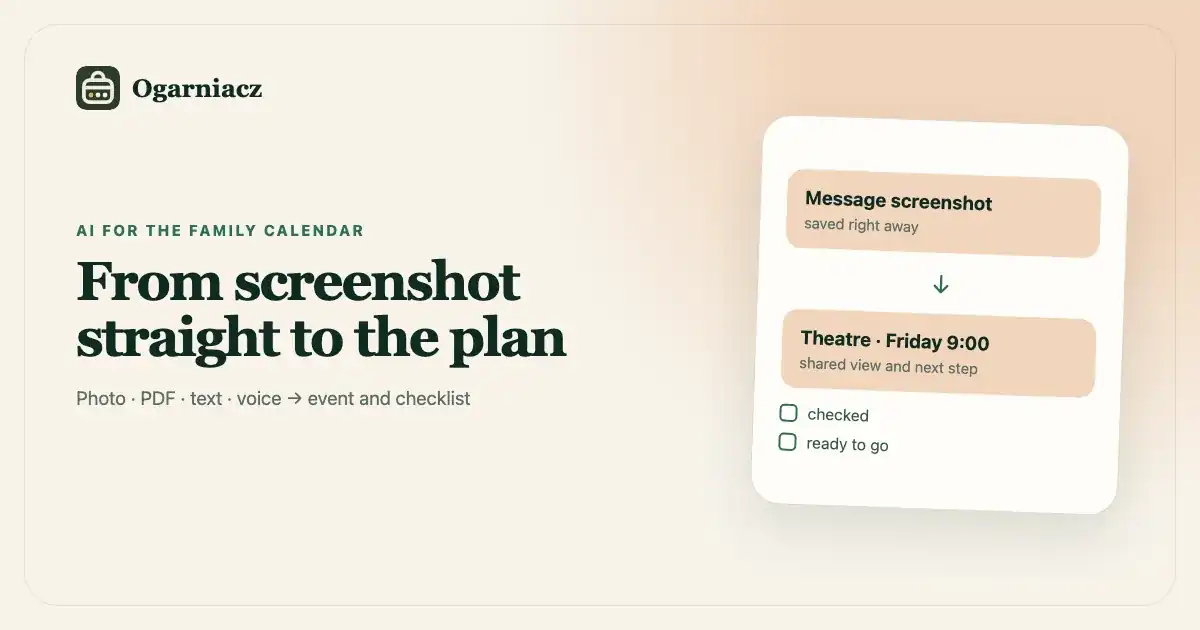
Most family dates do not come as an invitation that you just have to accept. They come as a photo of a note on a classroom door, a screenshot from a group, a multi-page PDF, an e-mail, or a sentence said on the run.
A calendar can be great and still remain empty. Each date requires a little work: find a date, set a time, assign a place, find preparation tasks and set a reminder. One message takes several minutes. A dozen or so messages a month is a system that quickly loses ground to everyday life.
What do you really need to get from a message?
Look at the sentence: "We are going to the theater on Friday. Please provide the consent and PLN 15 by Wednesday. Children come in formal attire."
It's not just one box on the calendar. There is at least four pieces of information inside:
- "Going to the Theater" event on Friday,
- earlier deadline for consent and money,
- checklist with formal attire,
- a reminder when you can still react.
A good import is not about recognizing the date itself. It should suggest an event together with activities that lead to its stress-free preparation.
„W piątek teatr. Zgoda do środy, 15 zł i strój galowy.”
How to do it without manual rewriting - step by step
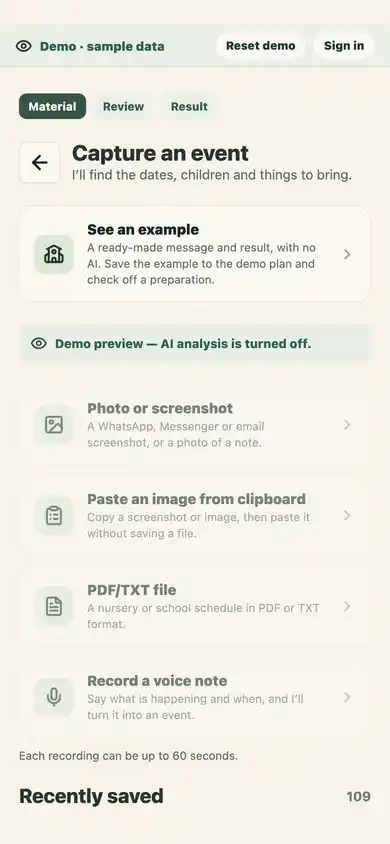
- Keep the source. Take a clear photo of the card or a screenshot. If you got the file, use PDF or TXT. When information is not in writing, record a short voice note.
- Submit the material for analysis. The tool will read the text and suggest events, dates, times and lists of preparation tasks.
- Check the result. The counter shows events found, selected to save and fields needing attention. Expand an event to edit it; the other events stay as short summaries, and only one editor is open at a time. You can reveal the source material when needed. Check the date, time zone, time and assigned person.
- Set up the preparation. “Prepare by” is the date by which a task should be done, such as signing a form or packing clothes. It is not a notification date; enable notifications separately after saving. Add location or details the AI could not know, and deselect any event you do not want to save.
- Confirm the save. The Discard and Save actions stay at the bottom while you scroll. Selected events enter the shared calendar only after you confirm. If saving fails, the draft and corrections stay open; retrying uses the same identifiers to avoid duplicates. The corrected result is also stored locally for up to 7 days; after closing the app, you can explicitly restore or delete it. We keep the text result, not the photo, PDF or recording.
Automation is useful when it shortens the path to a decision - not when it takes away your control over the outcome.
Photo, screenshot, PDF or voice note - what to choose?
Photo of a notice or poster
It is perfect for kindergarten announcements, duty plans, invitations and cards from the fridge. Shoot straight on, in good light and without the bottom part cropped out. If the card has two sides, add both sides.
Screenshot
This is the fastest way for messages from instant messenger, e-journal and e-mail. Before sending, check that there are no conversations or data in the screenshot that are not needed to create the event. It's best to crop the image to the correct message.
PDF or text
It is useful for class schedules, summer camp plans, trip programs and longer announcements. One document may contain several dates; the result is worth reviewing event by event.
Voice note
It's good when the date has just come up in conversation: "Dentist on Wednesday at 5 p.m., remind the day before and take the treatment card." Be brief and provide the full date, time and person involved.
Five checks before saving an event
- Is the year right? This is important especially at the turn of the year.
- Has "by Wednesday" become a separate deadline or task?
- Wasn't the starting time confused with the meeting time?
- Does the checklist include things to buy, sign and pack?
- Will the other caregiver see the information and reminder at the right time?
If the date is critical - baby pick-up, examination, departure - compare the transcript with the source material again. Ogarniacz shows a proposal for approval and does not save recognized events automatically.
What happens to the uploaded file?
In Ogarniacz, photos, screenshots, documents and recordings are used for one-time analysis. The application does not build an archive of source files; after acceptance, the created events are saved. However, the content must be transferred to a third-party AI provider, so it is worth removing unnecessary data before sending. Details are described in the public privacy policy.
When is it better to enter an event manually?
Manual entry still wins when the information has one sentence and one date, such as "dentist, August 12, 4:30 p.m." Import provides the greatest savings for materials that contain several dates, a checklist or a longer description.
This is a good test of tool selection: if checking the proposal takes less time than rewriting the source, automation makes sense. It's not about using AI for everything. The idea is to remove that part of the family work that is repetitive and easily postponed.
The simplest family habit
Establish one rule: the person who sees the message first immediately turns it into an event proposal. The other person does not have to get another screenshot with the note "remember". He sees the accepted deadline, checklist and reminder in the same place.
This is when the calendar ceases to be an archive of dates and begins to take over part of remembering the family.