
Family chaos rarely comes from a lack of effort. Most often it is due to the number of places where information lives:
- dates in one person's calendar,
- paper notes in backpacks and on the fridge,
- tasks in private notes,
- shopping requests in chat messages,
- trip plan in a document,
- bills remembered only approximately,
- important details kept in only one parent’s head.
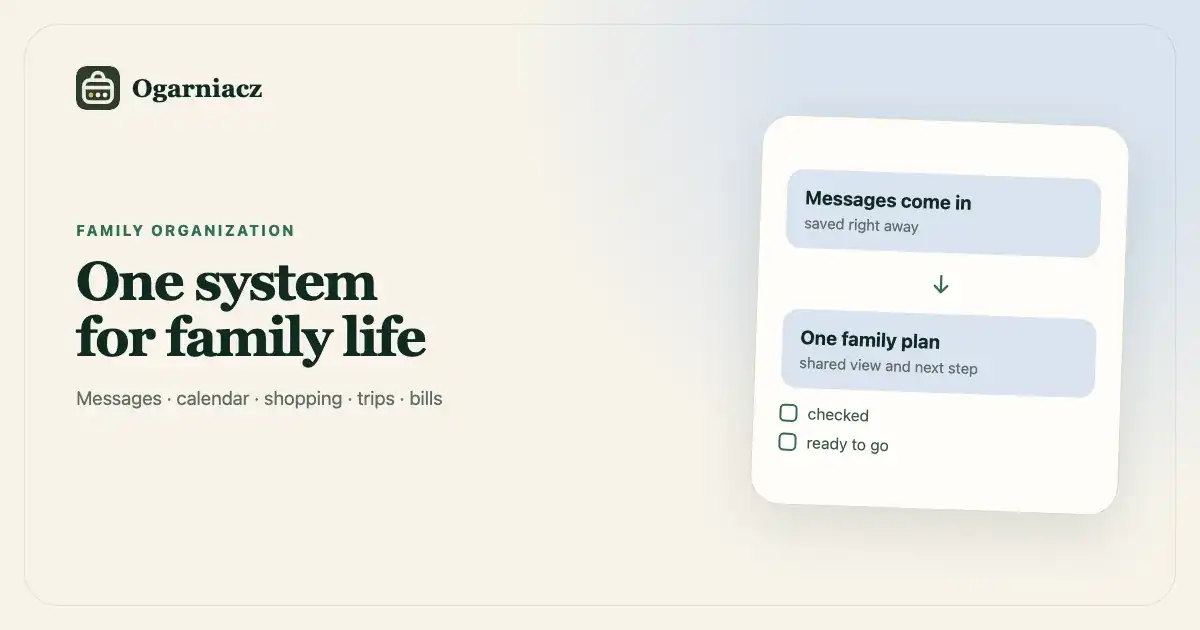
Each of these places can operate separately. The problems appear when information has to move between them. The message about the trip should become an event, the date should have a checklist, missing items should go on the shopping list, and the second caregiver should see the change without needing a separate update.
Design the flow before choosing the app
Before you choose a tool, draw the shortest possible information path:
- Input: a paper note, screenshot, email, conversation or your own idea.
- Decide what it is: a date, task, list, note or payment.
- Move it to the shared space: with date, person and necessary preparation.
- Comes back at the right time: on your daily agenda or as a reminder.
- Remove it when complete: check it off, mark it as paid or close it.
If there is a lot of rewriting between steps one and three, the system will depend on the most consistent person. If the information does not come back in the fourth step, the shared space will become a filing cabinet rather than a useful tool.
„W piątek teatr. Zgoda do środy, 15 zł i strój galowy.”
Layer 1: a shared plan for what is coming next
The basis is one shared family calendar. Each caregiver should have their own account, with access to the same events and permission to update them. The event should answer four questions:
- what's going on
- when and where,
- who it concerns,
- what you need to prepare.
Save recurring activities as a series rather than creating them anew each week. If one meeting is canceled, only cancel that specific date. When an exceptional date or time changes, edit a single occurrence without affecting the entire series.
Layer 2: checklists instead of reminding people
“Friday trip” is not enough. Only the list will give you peace of mind:
- sign the consent by Wednesday,
- make a transfer,
- buy provisions,
- prepare the outfit,
- pack a water bottle.
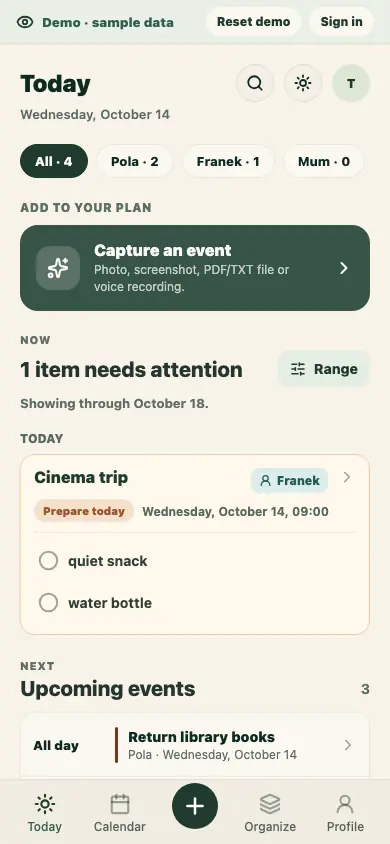
The event checklist stores context. Each step has its own checkbox and optional due date, so confirming attendance and buying a gift can be tracked separately. If you leave the date blank, the step is due one day before the event by default. This task deadline is separate from the reminder for the event itself. There is no need to look for the source message and explain again where the task came from. Collaborative checking off also has a simple advantage: you can see the status of the work, not just its owner.
Layer 3: separate lists for items without a specific time
Not everything should become an event.
- Note is good for information you want to come back to: clothing size, gift ideas, arrangements.
- Shopping List is better for things to buy. You can divide it into stores or occasions and dictate items with your voice.
- A bill should have an amount, date and status, but not pretend to be a full accounting system.
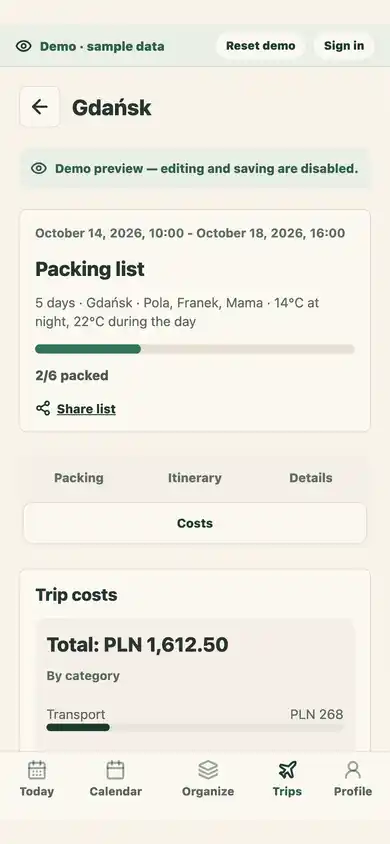
- A trip needs its own space for the route, weather and packing, because a regular event quickly becomes too crowded.
The rule is simple: choose the smallest type of record that will help get the job done.
Layer 4: Connections that take the work out of it
The greatest value does not come from the number of modules, but from the transitions between them.
If an event edit conflicts with a newer save, Ogarniacz keeps the older change as a local draft. You can load the newer data later and decide whether to reapply your draft. This protection covers events and checklists, not every area yet. Notes and shopping need an internet connection, and their changes are not held in a persistent offline queue.
Message → event
A screenshot, photo, PDF, text document, or voice recording becomes a proposed event. A caregiver reviews the result before saving.
Event → preparation
The appointment can have a checklist with a separate due date for each step, as well as its own event reminder. You can search for it later or share it to the Google or Apple calendar via a file or a revocable .ics subscription.
Trip → packing → shopping
The packing list takes into account participants' age, weather and transportation. Items that are missing can be moved to the shopping list instead of typing them out one by one.
State of the month → decision for today
A simple budget overview subtracts card debt and upcoming bills from available funds, takes into account expected income and a buffer. It is intended to provide orientation, not to replace a bank or an advisor.
Ten-minute weekly review
Even a good tool cannot replace a short joint look at the plan. Once a week, answer together:
- What will happen in seven days?
- Which dates have unfinished checklists?
- What needs to be purchased, paid for or signed?
- Who delivers, picks up and prepares?
- Is there something that still lives only in someone's head?
Don't make it a project meeting. Ten minutes is enough if the data is up to date. The goal is not to have a perfect week, but to have no unpleasant surprises.
How not to build another system that needs to be managed?
- Don't create "just in case" categories.
- Don't write down the same thing in three places.
- Don't require manual reporting of what is already checked off.
- Do not enter all historical data. Start next week.
- Don't wait until the plan is complete. The first success is one message that you didn't have to remember.
Implementation plan for one evening
Set up a shared space, invite a second caregiver and add only three things: the next important date, one recurring event and one shopping list. Then process the first real message that comes.
After a week, evaluate not "whether the application has all the functions", but:
- have you asked "when was that?" fewer times?
- Did the message turn into action faster?
- whether the other person saw the state of preparation without being reminded,
- whether the system responded before it was too late.
If so, the system is doing its job. The rest can be added when a real need arises.
Where to start in Ogarniacz
On Today, the filters and Now section sit above the plan. Open adding from the fixed + Add button in the phone's bottom navigation or Add in the desktop sidebar. The Now section starts with a count of items that need attention, followed by their checklists and dates. Each checklist step has its own checkbox and optional due date, separate from the event reminder. Overdue steps are amber; red means the event itself has passed. The selected-day preview in Calendar shows each step's due date, labels overdue open steps in text, and lets you check them off without opening the event. Events with a saved end time show their full time range so you can see when an activity ends. Overdue and urgent items always appear; other upcoming events follow the selected range. Trips appear without duplicates. Below the agenda, A calmer week summarizes remaining preparations and the next due date, with the completion percentage as a secondary measure. Change the range with the Range button. In Settings → Notifications → Home screen layout, choose whether to show your budget, bills and notes. Sync warnings stay above the plan.
Calendar and Organization keep the same names on your phone and computer. The Right now summary in Organization counts unpaid bills due by the end of the current month and unfinished notes marked for Today. Recurring bills due after this month, notes not marked for Today, and shopping items do not increase the count; each has its own card. Cards default to Notes, Shopping, Bills, Household budget, Trips, and Recurring activities. Use Reorder to move cards up or down; the order is saved for your account on this device. Expand a card to preview key items with their due dates or categories. In Bills on desktop, select an item from the compact list to see its details alongside it; on a phone, the list opens a separate detail view. A paid recurring bill points to its next due date instead of looking overdue. Use the Budget tab to plan monthly finances.